How to Account for Digital Ruble, Universal QR, and SBP in Your Personal Budget
Tracking expenses with various payment methods

Monday morning. Coffee paid via SBP QR, transport by card, pharmacy in cash. In the evening — a transfer to a friend for a shared marketplace order. Another day — utility payment via universal QR code. By week's end, five different notifications from three apps, and it’s unclear how much was spent on food versus household expenses.
Payment methods are multiplying: card, SBP, universal QR code, cash. Gradually, the digital ruble is added — another tool the Bank of Russia considers as an optional payment method for citizens. The new payment method itself shouldn’t disrupt tracking. The real challenge is that when money leaves from different places and via different channels, it’s easy to lose track.
The basic principle that clears most confusion: payment method is not an expense category. Nor is it an account. These are three distinct layers of tracking. Once you separate them mentally (and in your app), your budget becomes clear again.
Three steps to order:
- Identify which accounts and wallets you actually have.
- Set up categories based on the purpose of expenses, not payment method.
- Use tags to record payment methods (card, SBP, QR, digital ruble) if needed.
Next — how this looks in practice, including digital ruble and universal QR.
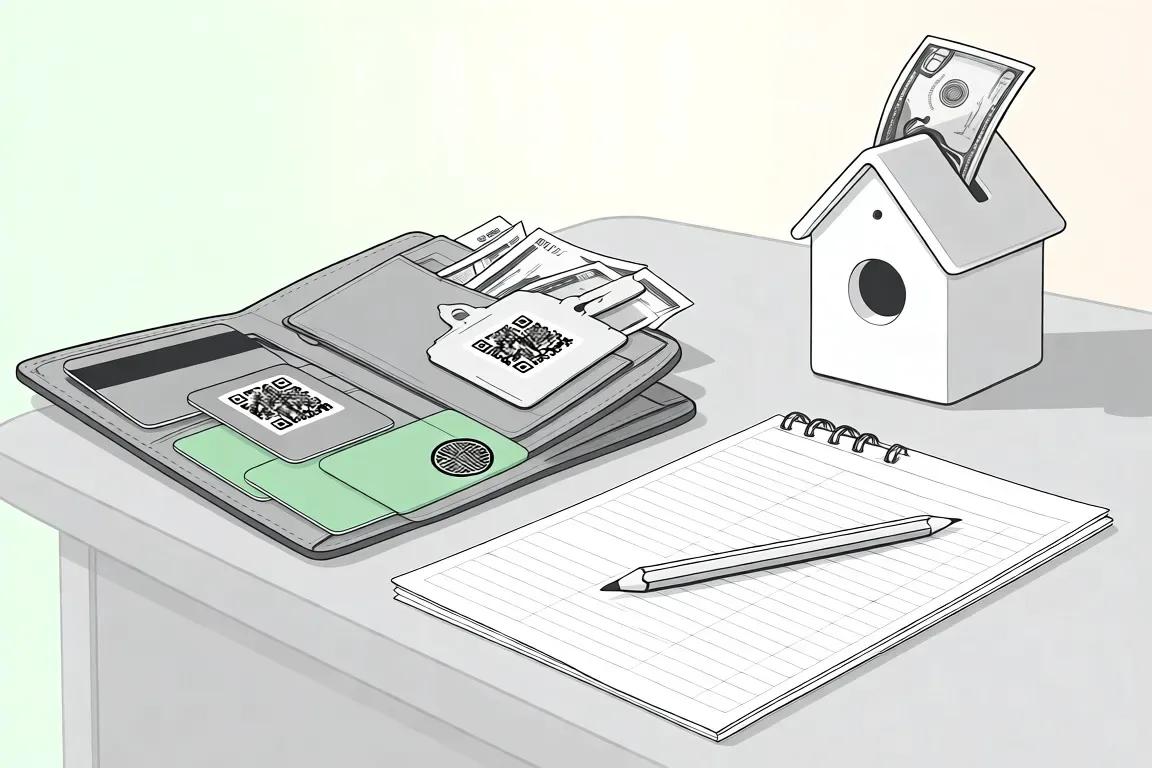
Three layers of tracking: account, payment method, category
Confusion usually starts when someone sees "SBP" or "QR" in a statement and automatically treats it as an "expense category." The report ends up with items like "SBP payments," "QR purchases," "Transfers" — hiding groceries, pharmacy, and utilities behind them.
Let’s break it down.
Account (wallet) — where the money came from. Examples:
- Debit card from Bank A
- Debit card from Bank B
- Savings account
- "Cash" wallet
- "Digital Ruble" account (if you use it)
These are your "pockets." You check balances and the overall picture of where your money is.
Payment method — how the payment was technically made:
- card payment via terminal,
- transfer via SBP,
- universal QR code,
- cash payment,
- payment with digital rubles.
This is the transport that moved money out of your pocket. It’s important for detail but doesn’t answer "why" you spent.
Expense category — why the money was spent:
- food and groceries,
- transport,
- pharmacy,
- cafes and restaurants,
- home and repairs,
- subscriptions and services.
Categories help you understand where most money goes, where you overspend, and where things are fine.
When these three layers mix into one, the budget becomes unclear. Categories like "SBP," "QR," "Transfers to friends" appear — and it’s unclear what’s inside: food, taxi, or fines.
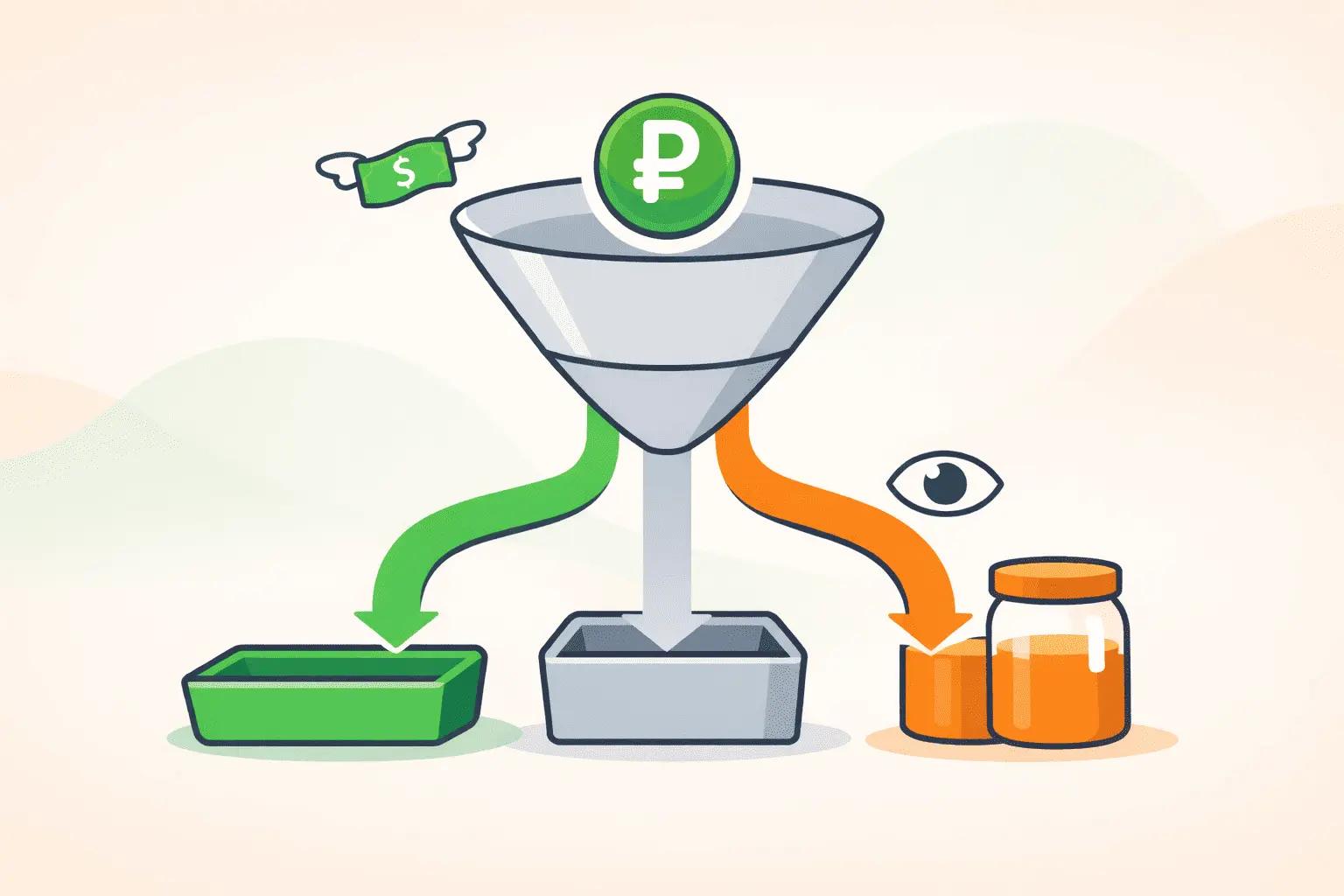
Quick rule: Category answers "why", account — "where from", payment method — "how". Three different questions — three different fields in tracking.
How to track each payment method
Card payments and cashless transfers
The most familiar scenario. The transaction debits your card account — so the account in tracking is your card ("Sber Card," "Tinkoff Card," etc.). You choose the category based on the purchase: groceries, cafe, transport.
If you transfer money to a friend for a shared food or taxi order, that’s also an expense in a real category — "Groceries" or "Transport," not an abstract "Transfers" category. Otherwise, the report will show many "transfers" but not what you actually spent on.
SBP, QR payments, and universal QR code
SBP (Fast Payment System), QR payments, and universal QR code are just methods by which money left the account. The account remains the same:
- your bank card,
- checking account,
- digital ruble app account (if paid from there).
The expense category depends on the purchase: coffee, utilities, internet, groceries. There’s no need to create separate categories like "SBP" or "QR." Universal QR code is also not an expense category but just a technical payment format.
If you want to see how many transactions went through SBP or universal QR, it’s easier to use tags. For example, add the tag SBP or QR to relevant transactions to filter them in reports later.
Cash
Cash is logically tracked as a separate account or wallet, e.g., "Cash" or "Wallet." It’s an account like a card.
When you withdraw cash from an ATM, from a tracking perspective, it’s a transfer between accounts:
- Source account: "Card"
- Destination account: "Cash"
- Type: transfer
- Category: none
No expense yet, money just moved from one pocket to another.
Expense appears when you spend cash: pay at the pharmacy, taxi, small purchases. At that moment:
- Account: "Cash"
- Type: expense
- Category: based on purchase (Pharmacy, Taxi, etc.)
The most common mistake: recording ATM withdrawal as an expense in the "Cash" category. Then the actual cash purchase is also recorded as an expense. This results in double-counting the same amount: "disappeared" at withdrawal and again at spending.
Digital Ruble in personal finances
The digital ruble is the third form of the Russian ruble alongside cash and cashless. According to the Bank of Russia, it’s an optional tool for citizens. Current conditions, implementation stages, and participating banks are best checked on the official site cbr.ru.
From a personal finance tracking perspective, the logic is simple:
- if you don’t use the digital ruble, no separate account or special rules are needed;
- if you start using it, it makes sense to create a separate account in your tracking app: "Digital Ruble" or "DR."
Then the same "accounts and wallets" principle applies:
- Replenishing digital ruble from card — a transfer between your accounts, not an expense. Money didn’t disappear, just moved from "Card" to "Digital Ruble" account.
- Paying for goods or services with digital rubles — an expense from the "Digital Ruble" account with a category based on the purchase: groceries, services, utilities, home and repairs.
If you want to track what share of expenses you pay with digital rubles, you can add a tag like DR, but this is optional.
It’s important not to treat the digital ruble as a "special" expense category. It’s just another wallet, not a separate type of expense.
Table: how to record different operations
Below is a summary table on how to track typical situations: card, SBP, QR payment, cash, and digital ruble.
| Situation | Account | Type | Category | Tag |
|---|---|---|---|---|
| Bought groceries by card | Sber Card | Expense | Groceries | — |
| Paid coffee via QR through SBP | Tinkoff Card | Expense | Cafe | QR / SBP |
| Paid utilities via universal QR | Card | Expense | Utilities | QR |
| Withdrew cash at ATM | Card → Cash | Transfer | — | — |
| Bought medicine with cash | Cash | Expense | Pharmacy | — |
| Transferred amount to digital ruble from card | Card → DR | Transfer | — | DR |
| Paid service with digital rubles | Digital Ruble | Expense | Services | DR |
| Transferred to friend for shared food order | Card | Expense | Groceries | Transfer |
| Paid subscription by auto-debit | Card | Expense | Subscriptions | — |
Key point — the ATM withdrawal row: operation type — transfer, no category. Expense appears later when you spend that cash.
If you want to dive deeper into basic tracking mechanics and building the habit of recording expenses, see the guide how to start tracking expenses.
Mini case: one month, five payment methods
Let’s take a month in the life of Anton.
Anton has been tracking for two months. Salary — 87,400 ₽, credited to Sber card on the 5th. On the same day he:
- transferred 15,000 ₽ to a savings account "under the mattress";
- withdrew 3,000 ₽ cash "for small expenses and taxi";
- set aside 2,000 ₽ in digital rubles to test the new tool.
Then the usual days:
- Groceries at the local supermarket: 4,380 ₽, paid by card.
- Coffee and breakfast at a cafe on the way to the office: 890 ₽, QR via SBP.
- Pharmacy: 1,240 ₽, cash (some cash left from last month).
- Transport card top-up and a couple of taxi rides: total 2,100 ₽, by card.
- Payment to a plumber for faucet repair: 3,500 ₽ with digital rubles (scanned QR code on invoice).
- Utilities for the apartment: 4,870 ₽ via universal QR code from paper receipt, same card.
- Mid-month, Anton transferred 1,600 ₽ to a friend for his share of a shared order of food and household chemicals on a marketplace — via SBP.
How Anton initially recorded expenses — and what went wrong
The first tracking attempt looked like this:
- coffee and breakfast recorded under "SBP" category;
- payment to plumber — under "Digital Ruble" category;
- utilities — under "QR payment" category;
- cash withdrawal — as "Cash" expense;
- transfer to friend — as "Transfers" category.
Two weeks later, he opened the report and saw a strange picture:
- "SBP" — 2,490 ₽,
- "Digital Ruble" — 3,500 ₽,
- "QR payment" — 4,870 ₽,
- "Cash" — 3,000 ₽,
- "Transfers" — 1,600 ₽.
Answering "how much was spent on food and cafes?" was impossible. It was unclear where utilities, home repairs, and groceries were.
How the same reality looks after correction
Anton rebuilt tracking by three layers: account, method, category.
-
Salary 87,400 ₽ to Sber card
- Account: "Sber Card"
- Type: income
- Category: Salary
-
Transfer 15,000 ₽ to savings account
- Account: "Sber Card" → "Savings"
- Type: transfer
- Category: none
-
Withdrawal 3,000 ₽ cash
- Account: "Sber Card" → "Cash"
- Type: transfer
- Category: none
-
Transfer 2,000 ₽ to digital rubles
- Account: "Sber Card" → "Digital Ruble"
- Type: transfer
- Category: none
- Tag: "DR" (optional)
-
Groceries at supermarket: 4,380 ₽
- Account: "Sber Card"
- Type: expense
- Category: Groceries
- Comment: "Local supermarket"
-
Coffee and breakfast: 890 ₽, QR via SBP
- Account: "Tinkoff Card" (if a different card is used)
- Type: expense
- Category: Cafe
- Tags: "QR", "SBP"
- Comment: "Cafe near metro"
-
Pharmacy: 1,240 ₽, cash
- Account: "Cash"
- Type: expense
- Category: Pharmacy
- Comment: "Cold, medicines"
-
Transport and taxi: 2,100 ₽, card
- Account: "Sber Card"
- Type: expense
- Category: Transport
- Comment: "Transport card + taxi to airport"
-
Faucet repair: 3,500 ₽, digital ruble
- Account: "Digital Ruble"
- Type: expense
- Category: Home and repairs
- Tag: "DR"
- Comment: "Plumber for faucet"
-
Utilities: 4,870 ₽, universal QR
- Account: "Sber Card"
- Type: expense
- Category: Utilities
- Tag: "QR"
- Comment: "March utilities"
-
Transfer 1,600 ₽ to friend for marketplace order via SBP
- Account: "Sber Card"
- Type: expense
- Category: Groceries (if mostly food and household chemicals)
- Tags: "SBP", "Transfer"
- Comment: "Share for joint order, Wildberries"
Now the monthly report shows:
- Food and groceries (including friend orders): 4,380 + 1,600 = 5,980 ₽
- Cafe: 890 ₽
- Pharmacy: 1,240 ₽
- Transport: 2,100 ₽
- Home and repairs: 3,500 ₽
- Utilities: 4,870 ₽
A clear picture emerged, even with five different payment methods (card, cash, SBP, universal QR, digital ruble). The digital ruble in personal finance turned out to be just another account.
Anton also noticed another error: the 3,000 ₽ ATM withdrawal was initially recorded as a "Cash" expense, then the pharmacy purchase was also recorded as an expense. The pharmacy category showed 4,240 ₽ instead of 1,240 ₽, and the "Cash" expense explained nothing. After changing the withdrawal to a transfer, the numbers matched.
Thought: Mistakes in tracking are normal, especially in the first months. The important thing is not to "perfectly record everything from the start," but to open the report weekly, find strange categories, and fix them. This builds a stable habit and reduces anxiety.
How to set up tracking in Kopium
In Kopium, the basic entities are accounts, categories, tags, places, and contacts. For new payment methods (SBP, universal QR, digital ruble), it’s enough to properly use existing tools.
Step 1. Create accounts for real money sources
No need to create an account for every bank or wallet. Better to reflect only those through which you really have transactions.
Minimum set:
- Main card — salary or the one you use for most expenses.
- Second card — if you often spend from another card.
- Cash — if you occasionally withdraw and spend cash.
- Savings account — if you transfer money "under the mattress" or for big goals.
- Digital Ruble — separate account only when you actually start using it.
The "Digital Ruble" account in Kopium isn’t needed "in advance." When real transactions appear — create the account and start tracking. Before that, the balance will just be an empty number adding noise.
Step 2. Set up categories based on the purpose of expenses
Categories are the "dictionary" you use to describe your expenses. They should answer: why you spent money, not "how you paid" or "where it was debited from."
Working category examples:
- Groceries
- Cafes and restaurants
- Transport
- Pharmacy
- Home and repairs
- Utilities
- Subscriptions and services
- Clothing and shoes
- Gifts
- Entertainment
Non-working examples:
- SBP
- QR payment
- Cashless
- Cash
- Digital Ruble
These are payment methods or account types, not expense purposes. If you already have such categories, it’s worth reorganizing: see what expenses are inside and redistribute by meaning.
If your category structure has grown complicated and hard to navigate, you can return to basics and follow the steps in how to set up expense categories.
Step 3. Use tags for payment methods and special cases
Tags in Kopium don’t affect sums in reports by categories and accounts but help quickly filter "special" transactions.
For tasks like "see all payments via SBP or QR," it’s convenient to create several technical tags:
SBPQRUniversal QRDR(digital ruble, if needed)Transfer(when paying for someone or getting reimbursed)
This way you keep the main principle: category — by expense purpose, payment method — in tag. Category reports show behavior, not "technical payment details."
Step 4. Mixed purchases, universal QR, and receipt photos
Real life rarely fits one receipt and one category. Typical cases:
- one purchase paid from two sources (part card, part cash or digital ruble);
- one universal QR receipt includes groceries, household chemicals, and, for example, children’s toys;
- one utility payment combines several services, but you want to allocate part to "Utilities" and part to "Home and repairs."
What you can do in Kopium:
-
Split one payment into multiple transactions. For example, 1,000 ₽ groceries and 500 ₽ household chemicals from one receipt:
- Transaction 1: 1,000 ₽, account "Card," category "Groceries."
- Transaction 2: 500 ₽, account "Card," category "Home and household."
-
Distribute payment across different accounts. For example, 2,000 ₽ total, 1,500 ₽ by card and 500 ₽ cash:
- Transaction 1: 1,500 ₽, account "Card," category by purchase purpose.
- Transaction 2: 500 ₽, account "Cash," same category.
-
Attach receipt photo or screenshot. Kopium allows adding comments and photos. This solves the problem of "not remembering mysterious 3,457 ₽ a week later."
Photos or screenshots of QR codes, receipts, or checks help restore details if you don’t want to split amounts into multiple transactions at purchase time.
When tracking gets complex: couples, variable income, subscriptions
New payment methods add flexibility but don’t eliminate old challenges: shared budgets, uneven income, subscriptions. The main goal here is not to force super discipline but to set up a system that tolerates normal human errors.
Family budget with multiple cards
If you track a joint budget with a partner, often it looks like:
- each has their main card;
- there’s one joint account for big expenses or savings;
- part of utilities is paid via one universal QR code, part via another.
In tracking, it makes sense to:
- create separate accounts for each card involved in family expenses;
- use common categories ("Groceries," "Home and repairs," "Utilities") for all cards;
- optionally use tags like
He/Sheor names to see who made which purchase.
Then the "Groceries" category report shows the family’s total food expenses, regardless of who paid and how — card, SBP, cash, or digital ruble.
Variable income and multiple income channels
If income is uneven (freelance, side jobs, bonuses) and comes to different accounts:
- some money lands on a card,
- some is given in cash,
- sometimes payment from a client comes via SBP transfer,
the main support is to carefully record income:
- how much arrived,
- to which account,
- from whom (use contact),
- for what (use category like "Freelance income" and tag with project name).
Then account balances in tracking will match what you see in bank and wallet. From this base, it’s easier to plan expenses, even if uneven. There’s a separate guide how to maintain spending stability with variable income.
Subscriptions and auto-debits
Subscriptions and auto-debits can now be charged:
- directly from card,
- via SBP,
- through linked universal QR in app,
- potentially from digital ruble wallet (if services support it).
From a tracking perspective, all are:
- type: expense;
- category: "Subscriptions and services" or a specific subcategory ("Music," "Cloud," "Apps").
It’s important to distinguish subscription from one-time purchase. If payment repeats monthly or yearly, it’s a subscription. If one-time (e.g., bought software forever), it’s a one-time expense. How to differentiate is detailed in subscription or one-time purchase: how to track.
Quick reminder: Transfers between your accounts (card → cash, card → savings, card → digital ruble) are neither expenses nor income. They’re just moving money between pockets. In tracking, this is a transfer, otherwise expenses get double-counted.
Checklist for setting up tracking for new payment methods
You can go through these steps in an evening and greatly simplify your budget life, even if you pay "everything and anything" — card, SBP, QR, cash, and digital ruble.
- Create a "Cash" account if you don’t have one, and record ATM withdrawals as transfers from card to cash, not as expenses.
- Add a "Digital Ruble" account when real transactions appear in this form — track top-ups as transfers and purchases as regular category expenses.
- Check your category list: if you have "SBP," "QR payment," "Cashless," "Digital Ruble," rename or redistribute them by expense purpose.
- Set up tags for payment methods if you want analytics:
SBP,QR,Universal QR,DR,Transfer. Keep category by expense purpose. - For mixed purchases (two payment sources or multiple product types in one receipt), either split into multiple transactions or attach receipt photo and short comment.
- Weekly reconcile account balances in Kopium with real ones: card, cash, savings, digital ruble. If something "jumps," look for untracked transfers and misclassified cash withdrawals.
New payment methods are just new paths your money takes out of wallets. If tracking clearly separates three questions — where from, how, and why — the budget stays clear even when payment methods double.